
Ask your AI about NEPSE - it reads our data while it answers.
AI connect plugs MacroLens NP into the AI assistant you already use. Ask a question in plain words; your AI looks the answer up in our research - live, under your account - and replies with real figures instead of guesses.
Step-by-step setup guide, with pictures ↓ पहिलो पटक? चित्रसहितको गाइड हेर्नुहोस्
{"symbol": "NABIL"}{"symbol":"NABIL","verdict":"WATCH","grade":"BBB","ltp":549,"fair_value_mid":378.6,"upside":-0.31}An example built from NABIL's reading right now. Your AI decides which of our tools to call - everything it looks up for one question counts as one.
Have an AI app with MCP
Claude or ChatGPT with custom connectors, or any app that speaks MCP (Model Context Protocol).
Add our connector
Paste https://np.nptrade24.com/mcp as a custom connector - or use the personal token from Account settings › AI connect.
Sign in and allow
Your AI opens a MacroLens NP page: sign in, press Allow. It reads under your account and plan.
Just ask
"Which hydropower stocks have the lowest dump risk?" "What did NEPSE do today?" Your AI calls the tools it needs.
New to this? Follow the full guide with pictures for Claude, ChatGPT or Claude Code ↓
What your AI can look up
search_stocksFind NEPSE-listed companies by symbol or name.get_stockOne company's full MacroLens NP reading: price, verdict, MacroLens Rating (AAA-D), fair value and upside, dump risk, key ratios, forensic red flags, the analyst summary, recent dividends and rating history..screen_stocksScreen every scored NEPSE company.get_market_overviewToday's NEPSE market: the index (level, change, 1/3/12-month returns, average daily range), breadth (advancing / declining), each sector's move, and the top gainers and losers..get_price_historyDaily OHLCV candles (adjusted for bonus and right shares) for a stock or the NEPSE index ("NEPSE"), newest last..get_smart_moneySmart Money Concepts reading of a stock's daily chart (or the index): swing and internal structure with each one's premium / discount position, the last BOS / CHoCH breaks, supply / demand zones, order blocks, resting liquidity and recent sweeps, and the market maker model (MMXM) phase..get_liquidityHow easy a stock is to sell: its typical daily turnover, sessions it did not trade (of the last 60), and trading days to sell Rs 10 lakh / 50 lakh / 1 crore at 10% of a day's trading..get_price_targetA stock's 12-month price target band (bear / base / bull), upside and call, as published on the Price targets page..get_iposIPOs, FPOs and right shares open now and opening soon, plus the IPO check verdicts read from SEBON prospectuses (risk signs and points)..get_circuitsStocks that closed locked at the daily price limit (upper / lower circuit) in the latest session and recently..get_newsThe latest NEPSE news and company announcements, tagged; optionally only one company's..get_stock_analysisOne section of a company's full MacroLens NP breakdown (get_stock gives the overview).get_financial_statementsA company's published quarterly reports (balance sheet, income statement, ratios as the company reports them), newest first..get_market_researchA market-wide MacroLens NP study.get_floorsheetThe NEPSE floorsheet, broker by broker, over the last few trading days: with a symbol - which brokers bought and sold it (and the 20-day broker-flow reading); with a broker number - what that broker bought and sold and with whom; with neither - the busiest brokers and stocks..get_debenturesDebentures and bonds listed on NEPSE: coupon, price, yield to maturity, years left, how often each trades and its risks - or one (symbol) with what Rs 1 lakh made (bought at listing / sold at the peak / bought at the low).get_cotCOT (Commitments of Traders) positioning of big money in gold, silver, platinum and crude oil futures: direction, crowding (COT Index), weekly changes, plus the US 10-year yield read..get_my_watchlistThe signed-in account's own watchlist, with each stock's price, change since added, rating and verdict..get_my_portfolioThe signed-in account's own portfolio tracker: holdings with quantity, average cost, today's value and gain / loss..get_my_price_alertsThe signed-in account's own price alerts and whether each has triggered..
Lookups a day, by plan
| Plan | Questions |
|---|---|
| Free | not included |
| Trial (7 days) | 7 a day |
| Pro | 10 a day |
| Pro Diamond | 50 a day |
| Institutional | Unlimited |
Everything your AI looks up to answer one question - a search, then the company, then its prices - counts as one. The count resets at midnight Nepal time. Readings are research, not investment advice.
How to connect your AI - step by step
Never used an AI connector before? Follow this once - it takes about 3 minutes. You only do it one time; after that, just ask your AI questions as usual.
https://np.nptrade24.com/mcp
यो ठेगाना copy गरेर राख्नुहोस्-
Open Claude and sign in
Go to claude.ai in your browser, or open the Claude desktop app. Sign in with your Claude account. (Set it up on a computer - once it's added, it also works in the Claude phone app.)
claude.ai खोल्नुहोस् र आफ्नो Claude खाताले लगइन गर्नुहोस्। पहिलो पटक computer बाट गर्दा सजिलो हुन्छ।
-
Open Connectors
Click your name or the menu, then Customize → Connectors. In some versions it's Settings → Connectors.
आफ्नो नाम/menu थिच्नुहोस् → Customize (वा Settings) → Connectors।
-
Add a custom connector
Click + Add (or Add connector), then Add custom connector.
+ Add थिच्नुहोस् → Add custom connector छान्नुहोस्।
-
Paste our address
Name: MacroLens NP. Remote MCP server URL: paste the address below. Leave everything else as it is and click Add.
https://np.nptrade24.com/mcpName मा MacroLens NP, URL मा माथिको ठेगाना paste गरेर Add थिच्नुहोस्।
-
Connect, then press Allow
Click Connect next to MacroLens NP. Our page opens: sign in to MacroLens NP if asked, check it says your email, and press Allow. You're sent back to Claude - done. It can only read our data; it can never change your account.
Connect थिच्नुहोस्। MacroLens NP को page खुल्छ - लगइन गरेर Allow थिच्नुहोस्।
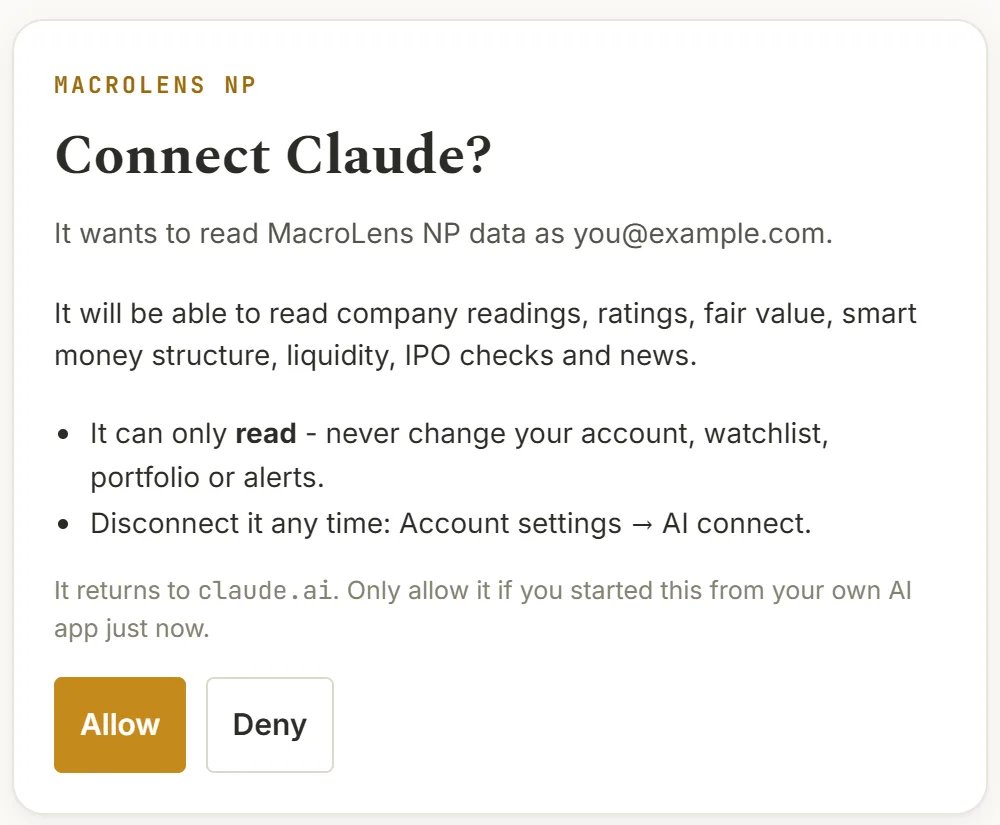
Our real Allow page -
Turn it on in a chat
Start a new chat. Click the + button (or the tools / connectors icon) under the message box and make sure MacroLens NP is switched on.
नयाँ chat मा + थिचेर MacroLens NP on गर्नुहोस्।
-
Ask about NEPSE
Ask in plain words - English or Nepali. You'll see Claude "using MacroLens NP" while it looks the answer up. If it answers without our data, add "use MacroLens NP" to your question.
अब सामान्य भाषामा सोध्नुहोस् - अंग्रेजी वा नेपालीमा।
Using Claude through a work (Team or Enterprise) account? An owner of that account has to add the connector first (Organization settings → Connectors); then you only do steps 5-7.
ChatGPT's custom connectors need Developer mode, which isn't on every ChatGPT plan, and OpenAI moves the menus between versions - if a name below differs slightly, look for the closest one.
-
Turn on Developer mode
On chatgpt.com (computer): open Settings → Apps & Connectors (or Connectors) → Advanced settings, and switch on Developer mode.
Settings → Connectors → Advanced मा गएर Developer mode on गर्नुहोस्।
-
Create the connector
Click Create (or Add custom connector). Name: MacroLens NP. MCP server URL: our address. Authentication: OAuth. Tick that you trust it, then Create.
https://np.nptrade24.com/mcpName, URL हालेर Authentication मा OAuth छान्नुहोस् → Create।
-
Sign in and press Allow
Our page opens - sign in to MacroLens NP and press Allow, just like the picture.
MacroLens NP मा लगइन गरेर Allow थिच्नुहोस्।
Our real Allow page (it names the app asking) -
Use it in a chat
In a new chat, click + → Developer mode (or More) and tick MacroLens NP. Then ask your question.
नयाँ chat मा + थिचेर MacroLens NP छान्नुहोस्, अनि सोध्नुहोस्।
For apps that don't open a sign-in page - Claude Code, and other MCP apps that ask for a URL and a header. You use a personal token instead of pressing Allow. Keep it secret like a password.
-
Make your token
Sign in to MacroLens NP → Account settings → AI connect → Make a token. Copy it straight away - it's shown only once.
Account settings → AI connect मा Make a token थिचेर token copy गर्नुहोस्। यो एक पटक मात्र देखिन्छ।
-
Claude Code: run one command
In your terminal, run this once (put your token where it says YOUR_TOKEN). Then start claude and ask.
claude mcp add --transport http macrolens-np https://np.nptrade24.com/mcp --header "Authorization: Bearer YOUR_TOKEN" -
Any other MCP app
Server type: HTTP (streamable HTTP). URL: our address. Header: Authorization = Bearer YOUR_TOKEN.
https://np.nptrade24.com/mcpURL र header (Bearer token) हाल्नुहोस्।
Questions to try first · सुरुमा यी सोधेर हेर्नुहोस्
Something not working? · समस्या आयो?
I can't find "Add custom connector"
Update the app or use claude.ai in a browser on a computer. Look under Customize or Settings → Connectors. A free Claude account can add one custom connector - if you already have one, remove it or upgrade. In a work account, an owner must add it.
The Allow button is grey, or it says AI connect needs a paid plan
AI connect comes with the 7-day trial and the paid plans, not the free plan. See the plans. Make sure you're signed in to the right MacroLens NP account (the page shows its email).
My AI answers without using MacroLens NP
Check the connector is switched on in this chat (the + menu), then ask again and add "use MacroLens NP". Start a new chat if it still doesn't.
It says I've used today's questions
Each plan has a number of questions a day (the table above); everything your AI looks up for one question counts once. The count resets at midnight Nepal time.
"Couldn't connect" or "authorization failed"
Check the address is exactly https://np.nptrade24.com/mcp (no space at the end), remove the connector and add it again, and allow pop-ups for claude.ai / chatgpt.com so our sign-in page can open.
How do I disconnect it? Is it safe?
Your AI can only read MacroLens NP data - it can't change your account, watchlist, portfolio or alerts. Disconnect any time in Account settings → AI connect, or remove the connector in your AI app. Never share a personal token.
Pictures marked as diagrams are drawn to show where to click - your AI app's screens look a little different and change over time. The Allow page is our real one.